
Managing calendars
In Stalmanager, you can use multiple calendars. This helps you keep your calendar organized. For example, you could create a separate calendar for each employee or group of horses. To use multiple calendars, go to " Settings" and select the "Manage calendars" option under the "Calendar" heading.
Add calendar
To add a calendar, click the "Add calendar" button at the top. In the screen that appears, you can give the calendar a name and specify its position. A calendar's position determines the order in which the calendars are displayed in " Calendar".
Rename calendar
To rename a calendar, enter the desired name in the text field for the calendar you want to rename. Then simply click " Save".
Change order
To change the order of calendars, drag the calendar from its current position to the desired position in the list. Then save this change by clicking " Save".
Delete calendar
To delete a calendar, click the delete button for the calendar you want to delete. You will be shown a confirmation, because all appointments on that calendar will be lost. If " Delete" is clicked in the confirmation, the calendar and its appointments will be deleted.
Restrict visibility
For each calendar (except the general calendar), you can specify which users may view it. To do this, click the link under the "Visible to" heading. This link also shows whether everyone has access or only certain users. On the page that opens when you click the link, you can make the calendar visible to all users or only to selected users.
Manage working hours
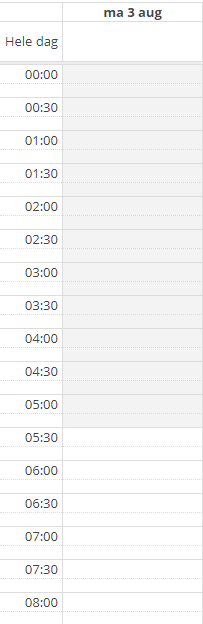
You can also manage working hours for each calendar. Working hours are indicated in the calendar by white areas when they fall within working hours and dark areas when they fall outside working hours.
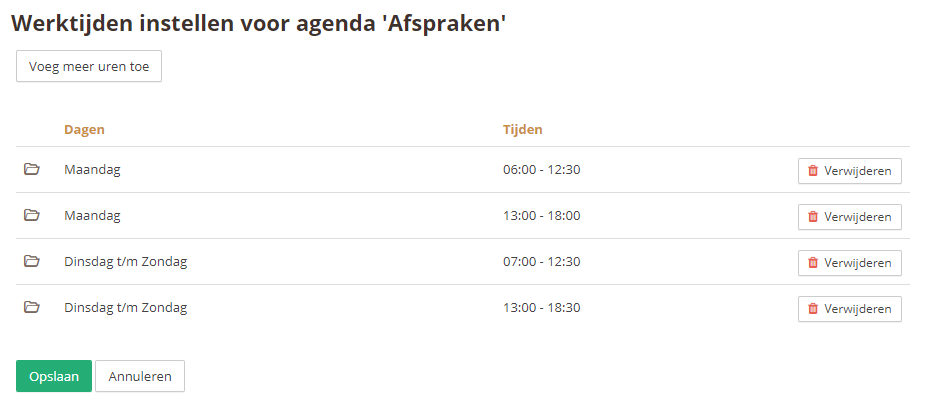
You can manage working hours by clicking the " Manage working hours" button. Here you can specify the working hours for each day. You can even specify breaks by splitting the day into time slots that indicate when work is performed.